How to build a treatment plan and send it for signature
On this page
The treatment plan comes out of the odontogram: everything you recorded as Planificado becomes a quote organised by phases, with its prices. You adjust it, give it alternatives and a payment plan, and send it as a link. The patient reviews it on their phone — in plain words and with their teeth marked —, chooses what they accept and signs it. No paper, no retyping, and with a valid electronic signature (Law 527 of 1999).
Before you start
- The patient needs treatments recorded as Planificado in a consultation (how). With a tooth selected, Enter plans the treatment that resolves its finding.
- Prices come from your service catalog, by CUPS code. Anything without a price you type into the plan.
- If the patient belongs to an EPS, the clinic needs a contract in force with that EPS, with its rates (how).
Build the plan
- Open the patient and go to the Odontograma tab.
- In Vista, choose Plan y presupuesto.
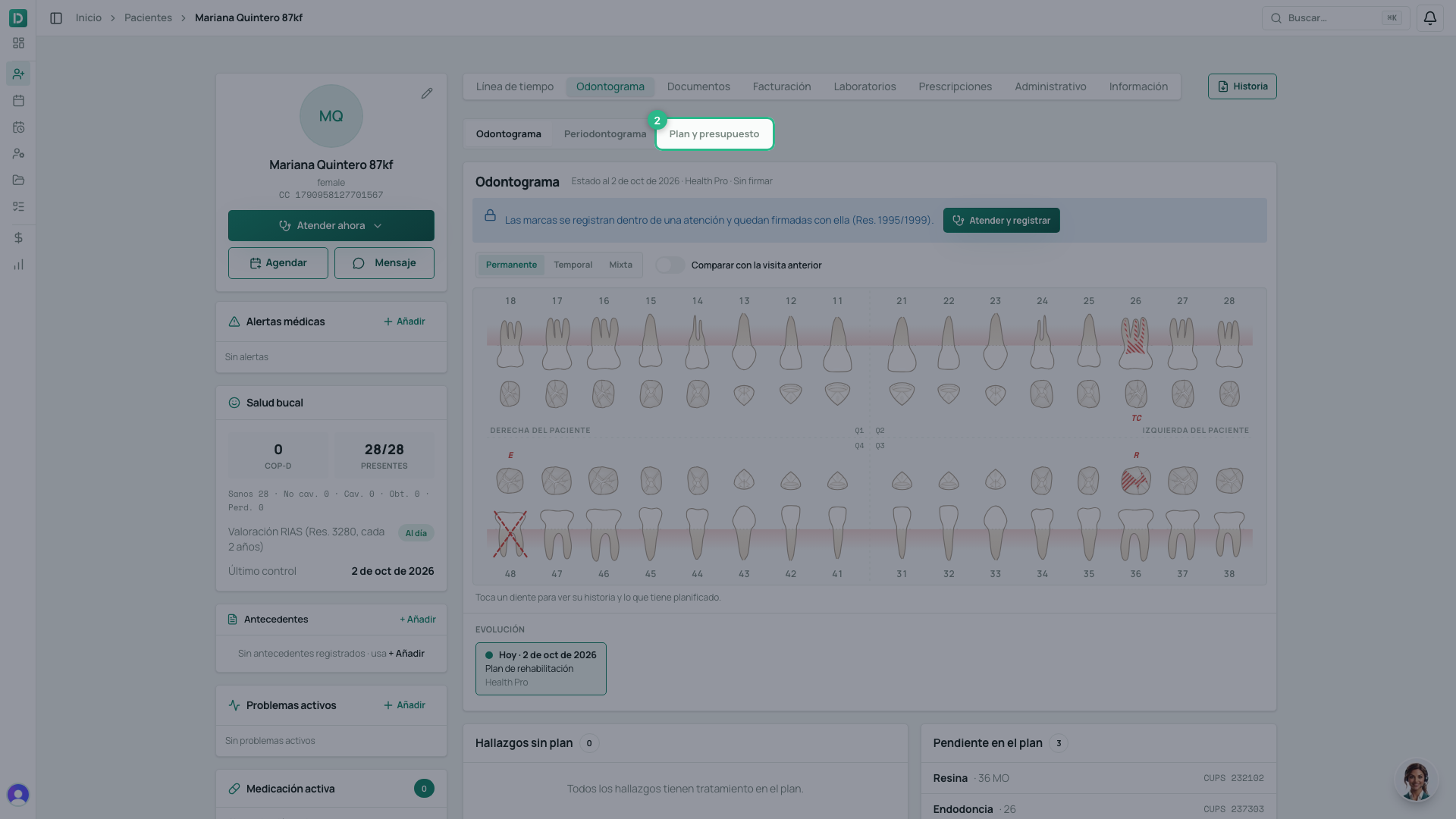
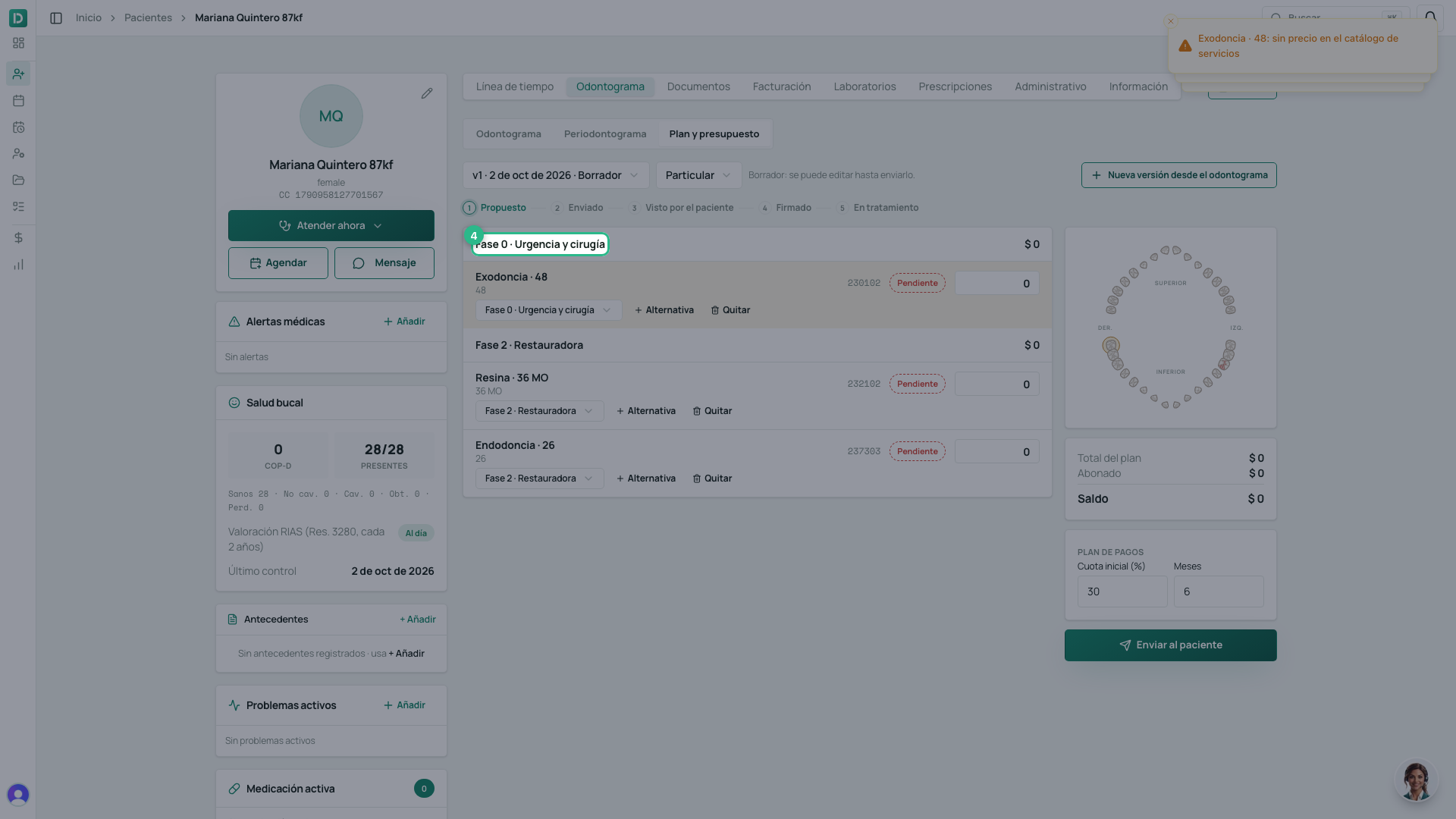
- Click Crear desde el odontograma.
- The treatments are ordered by phase: urgent and surgical, hygienic and periodontal, restorative, rehabilitation and maintenance. You can move any of them to another phase.
If the patient belongs to an EPS
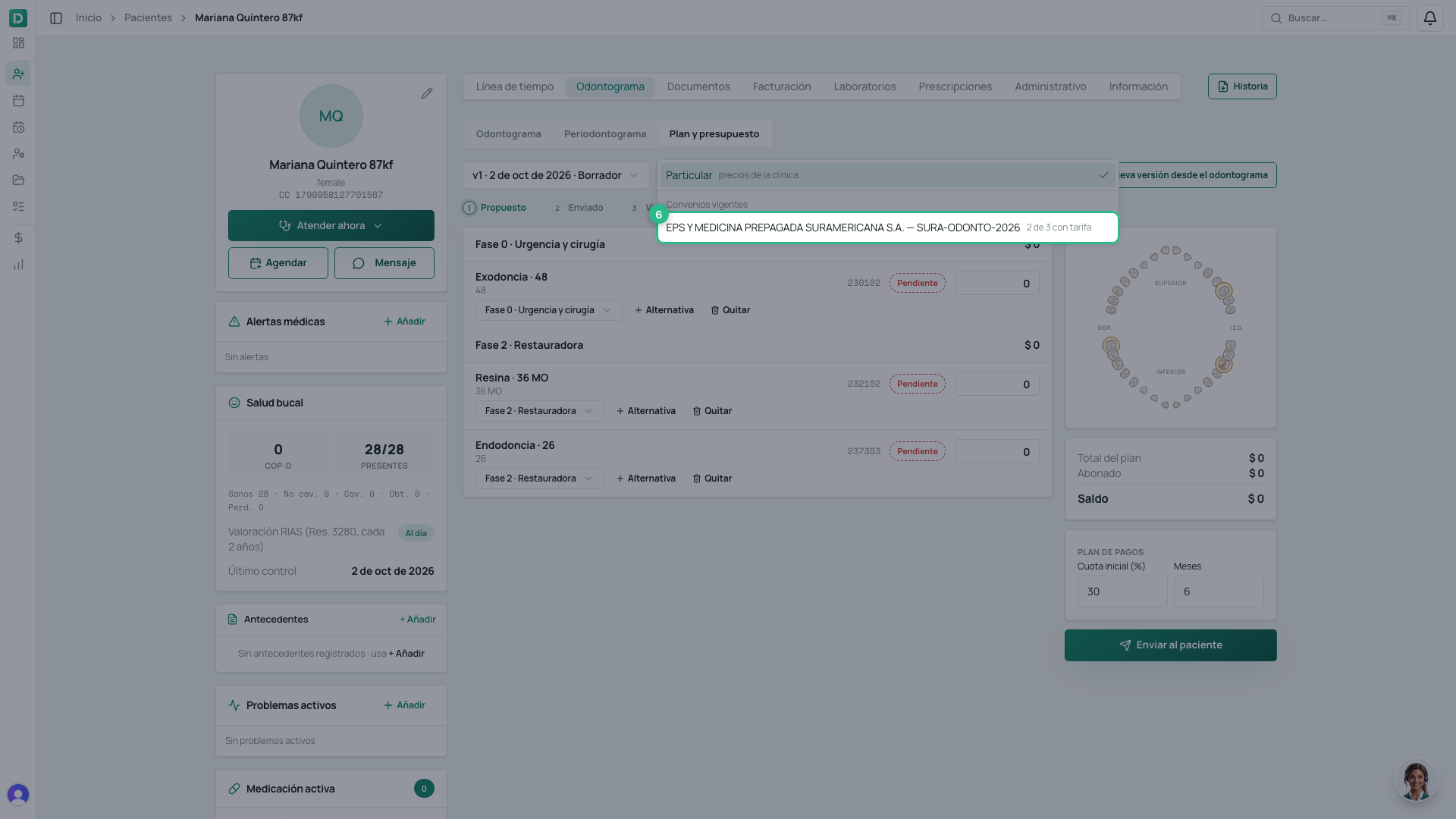
When the clinic has EPS contracts in force, Quién paga (who pays) appears next to the version. If the patient pays privately, leave it on Particular and continue at step 9.
- Click Quién paga. Each contract tells you how many of the plan’s treatments it has a rate for (2 de 3 con tarifa).
- Choose the contract of the patient’s EPS. The draft is recalculated with its rates.
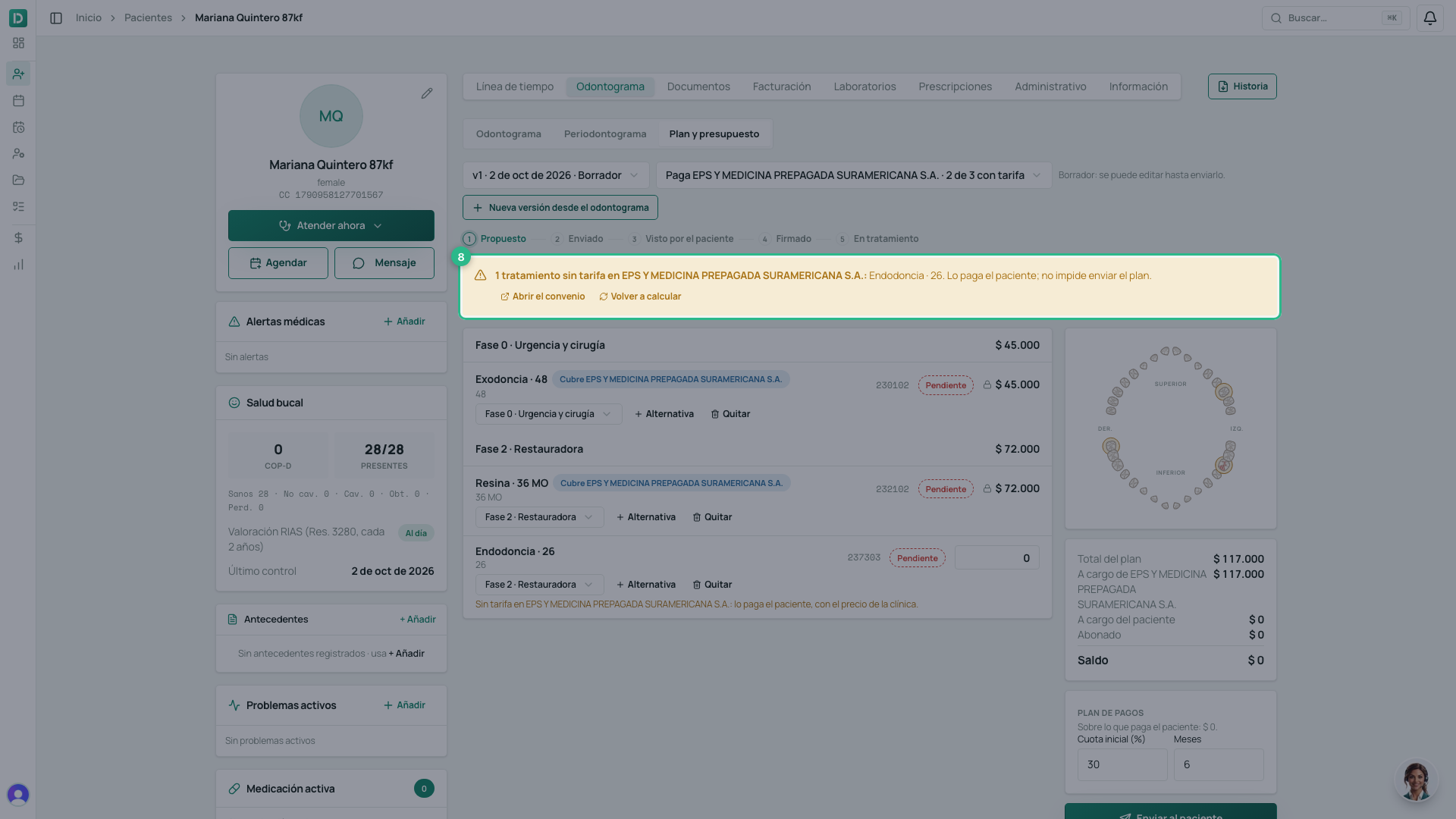
- What the contract covers is marked Cubre plus the EPS’s name, at the contract’s rate and with a padlock: it is not edited in the plan.
- What has no rate is paid by the patient, at the clinic’s price. A warning lists it; it does not stop you sending the plan. If you update the contract, click Volver a calcular (recalculate).
If the patient’s last visit was billed to an EPS whose contract is still in force, their first plan already starts on that contract. A new version keeps the previous one’s payer.
Prices, alternatives and payments
- Review the price of what the patient pays. While it is a draft you can change it.
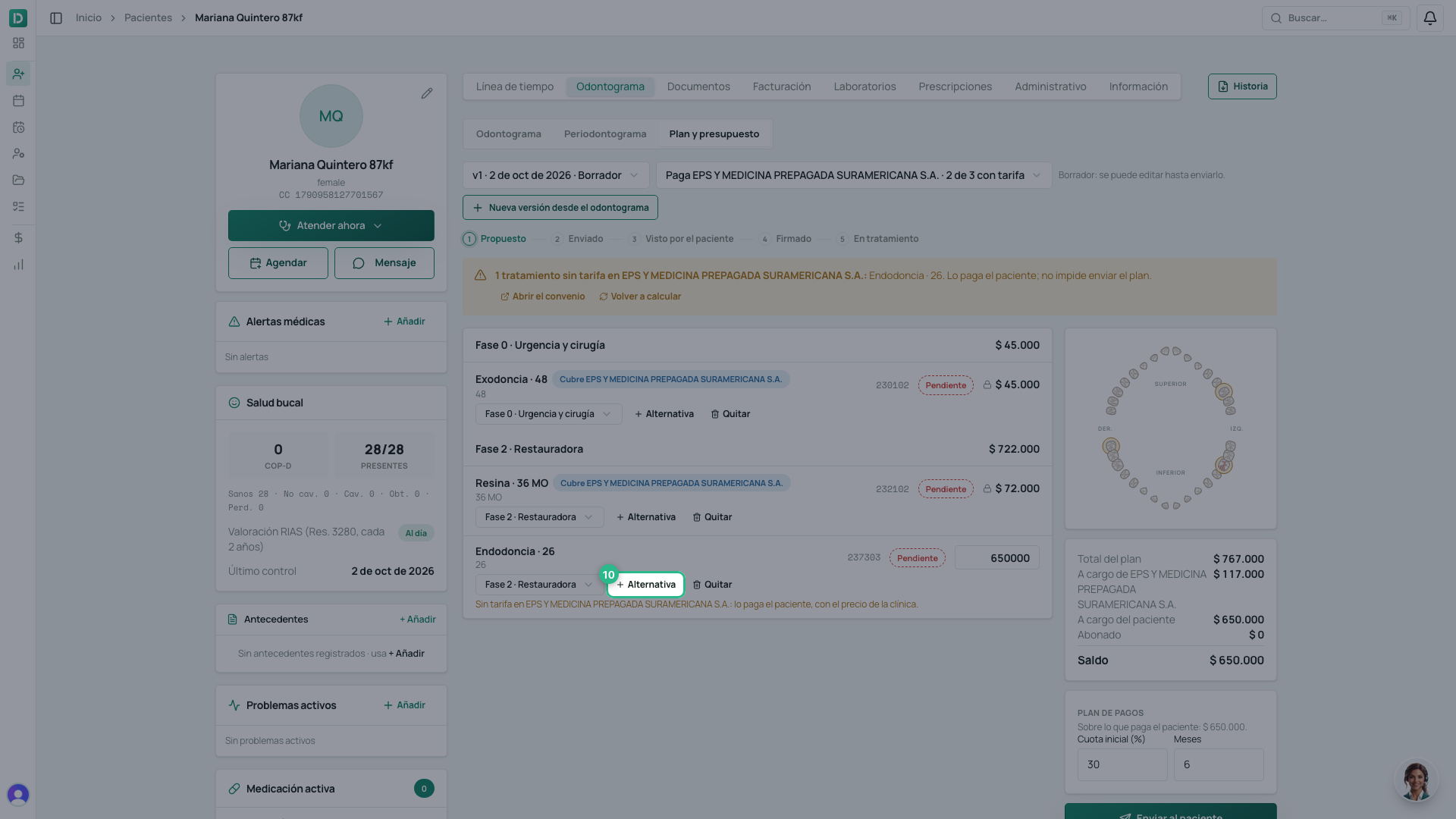
- Is there another way to treat it? Click Alternativa on the treatment, describe the option, its CUPS code and its price, and click Agregar opción. The patient will choose one — for example, root canal or extraction.
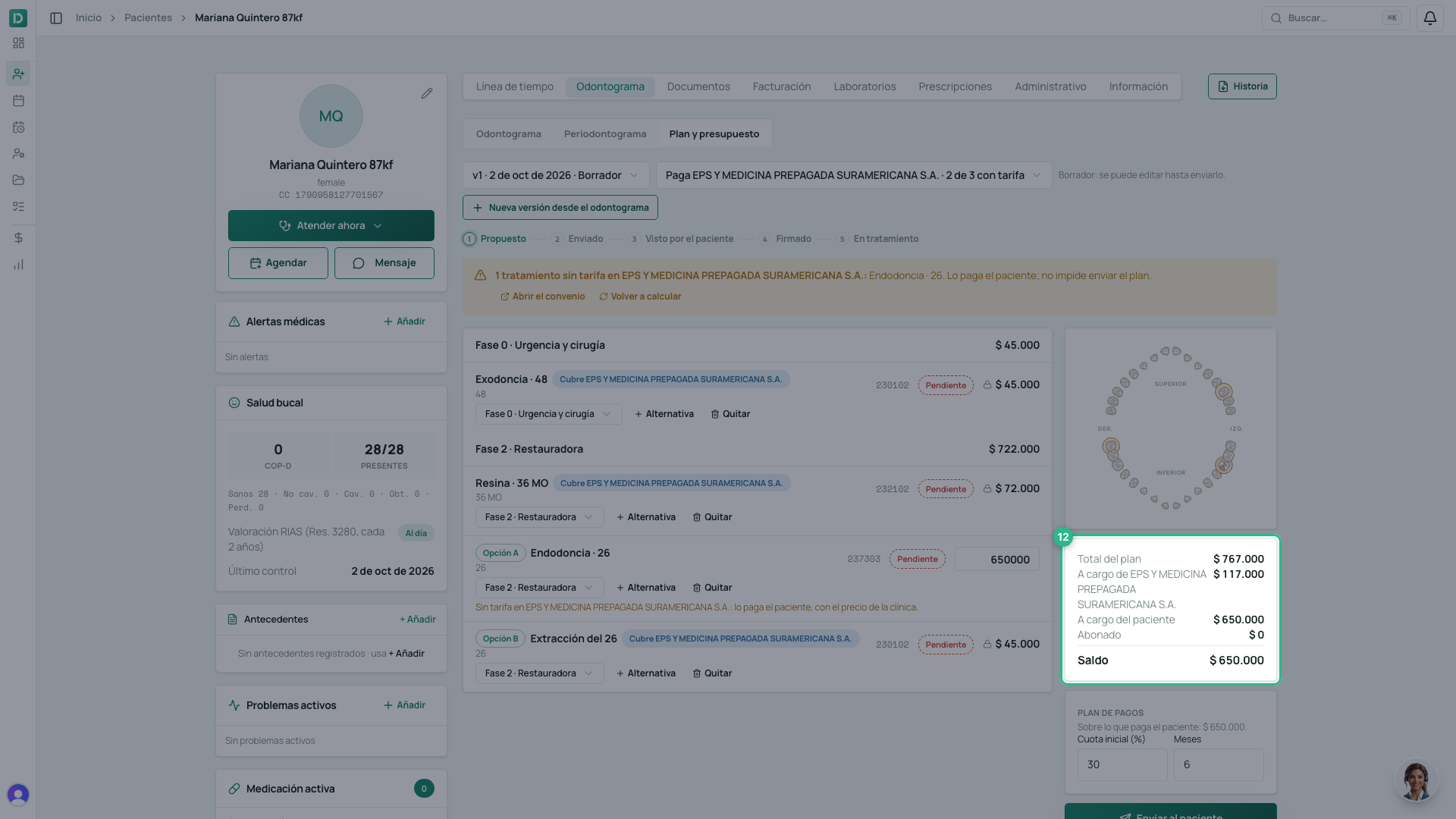
- In Plan de pagos, enter the Cuota inicial (%) and the Meses. Instalments apply only to what the patient pays, and their dates are set on the day the patient signs.
- The totals show the Total del plan, what is Aceptado (accepted), what is Abonado (paid) and the Saldo (balance). With an EPS they split what is a cargo de the EPS from what is a cargo del paciente; the balance is only the patient’s share.
- Estado del plan tracks the plan from Propuesto to Enviado, Visto por el paciente, Firmado and En tratamiento.
Send it
- Click Enviar al paciente.
- Copy the link or click Enviar por WhatsApp. The link expires after the number of days the clinic set in Ajustes → Odontología (30 by default).
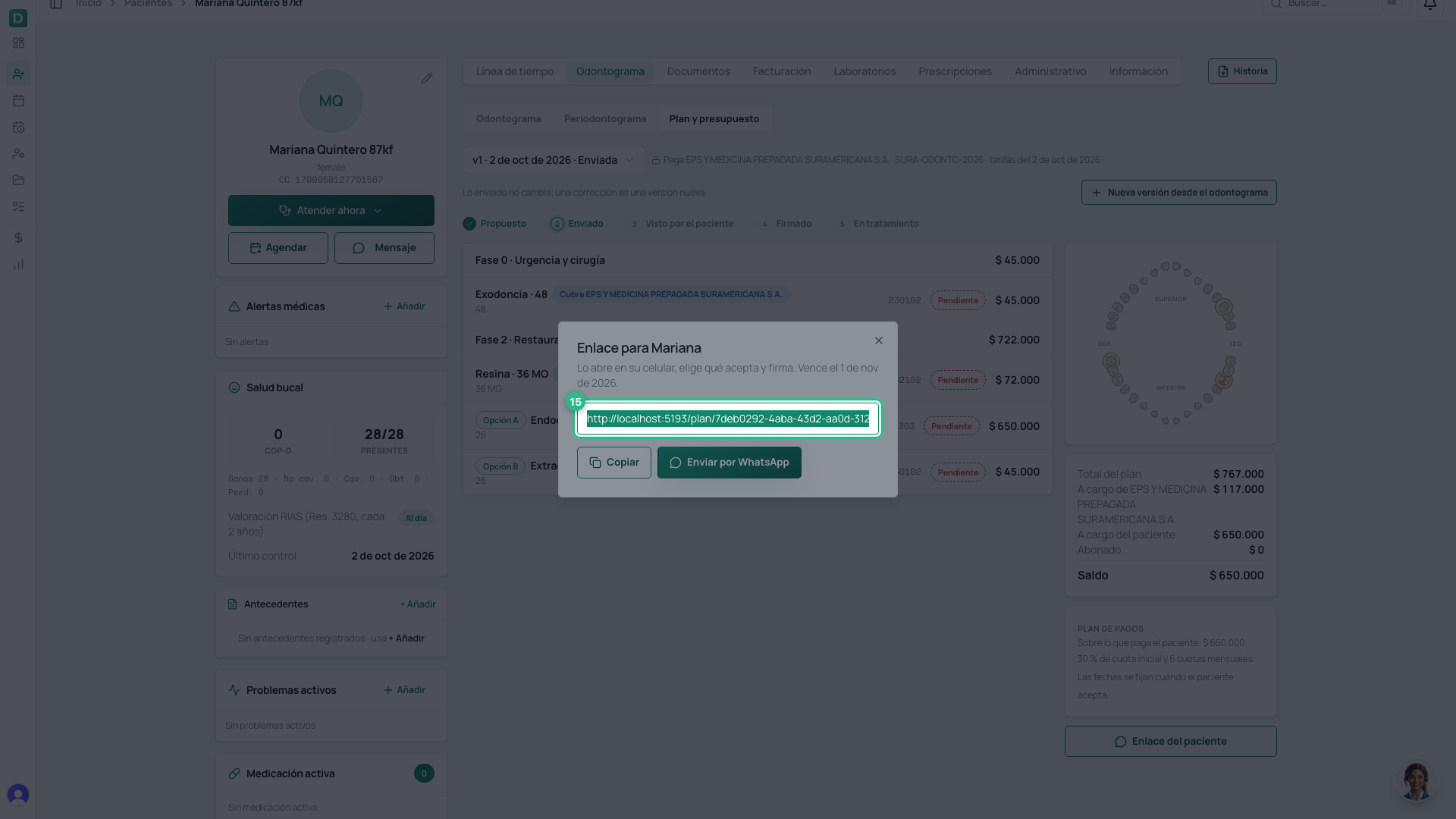
Once sent, it no longer changes: with an EPS, the plan shows who pays and the date of the rates it took. If something needs correcting, click Nueva versión desde el odontograma: the previous version becomes Reemplazada and its link stops working.
What the patient sees
- The patient opens the link on their phone — no account needed — and sees their plan in plain words (“calza del color del diente” (tooth-coloured filling), “tratamiento de conducto” (root canal treatment)), with the teeth marked on a drawn mouth.
- If the plan goes through an EPS, a notice tells them how many treatments it covers: those show at $ 0 with Cubre and the EPS’s name, and the total reads Tú pagas (you pay). The contract’s rate never reaches their phone.
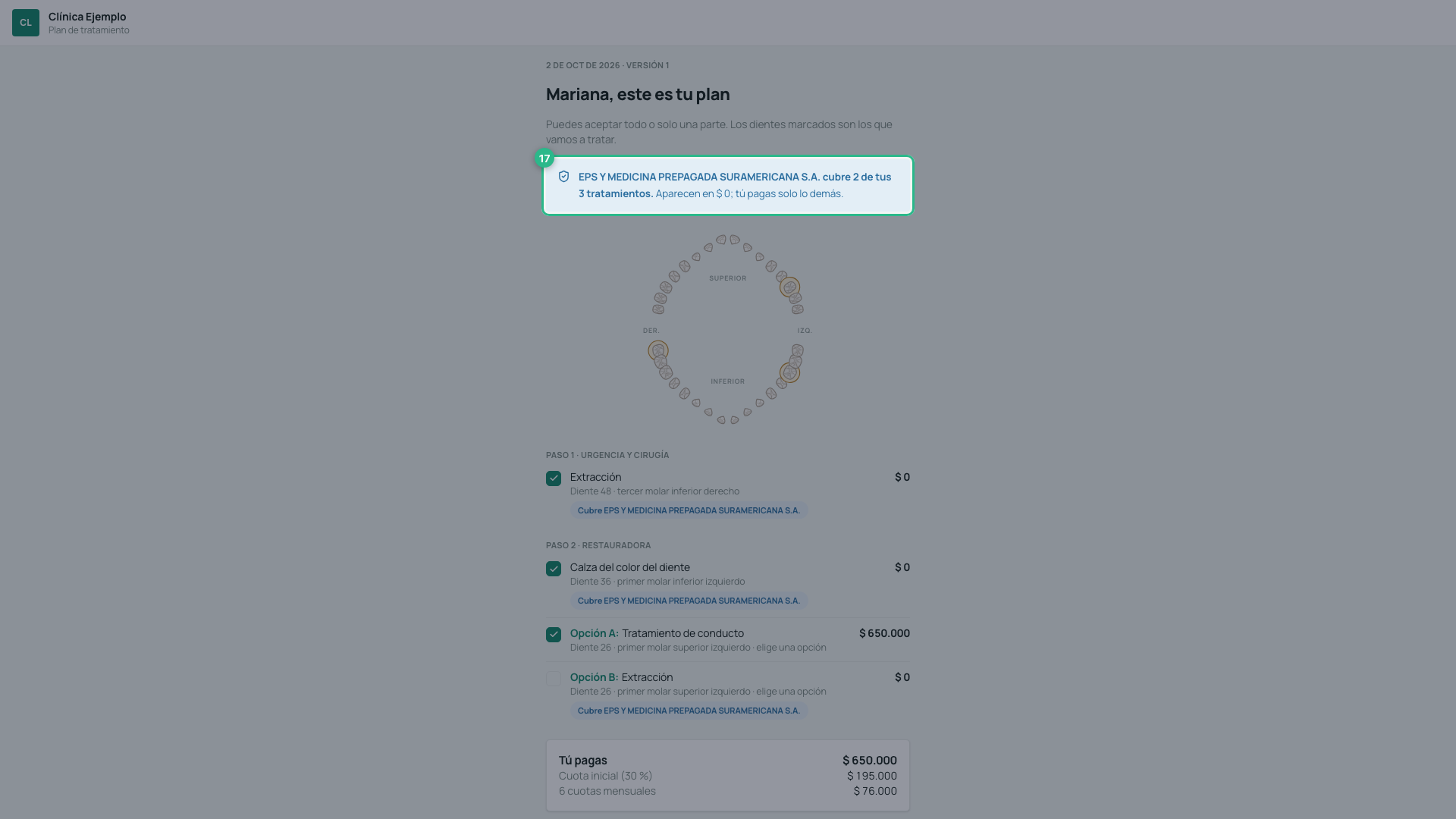
- They untick what they do not accept. For each alternative they choose one option. What they pay and the instalments are recalculated instantly.
- They type their full name.
- They sign in the box.
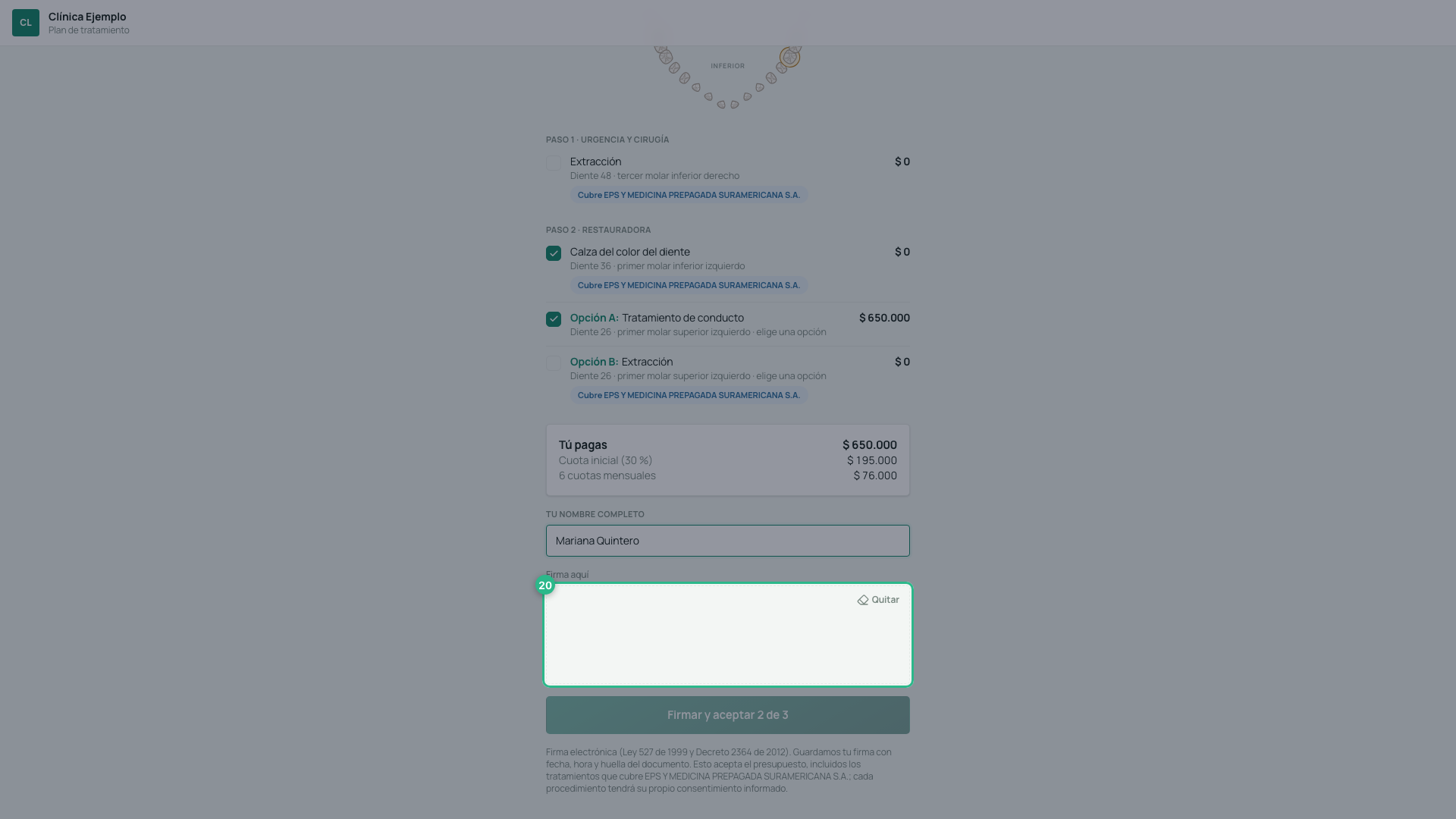
- They click Firmar y aceptar.
- Done: the clinic has their signature — with date, time and the document’s fingerprint — and the instalment plan is fixed.
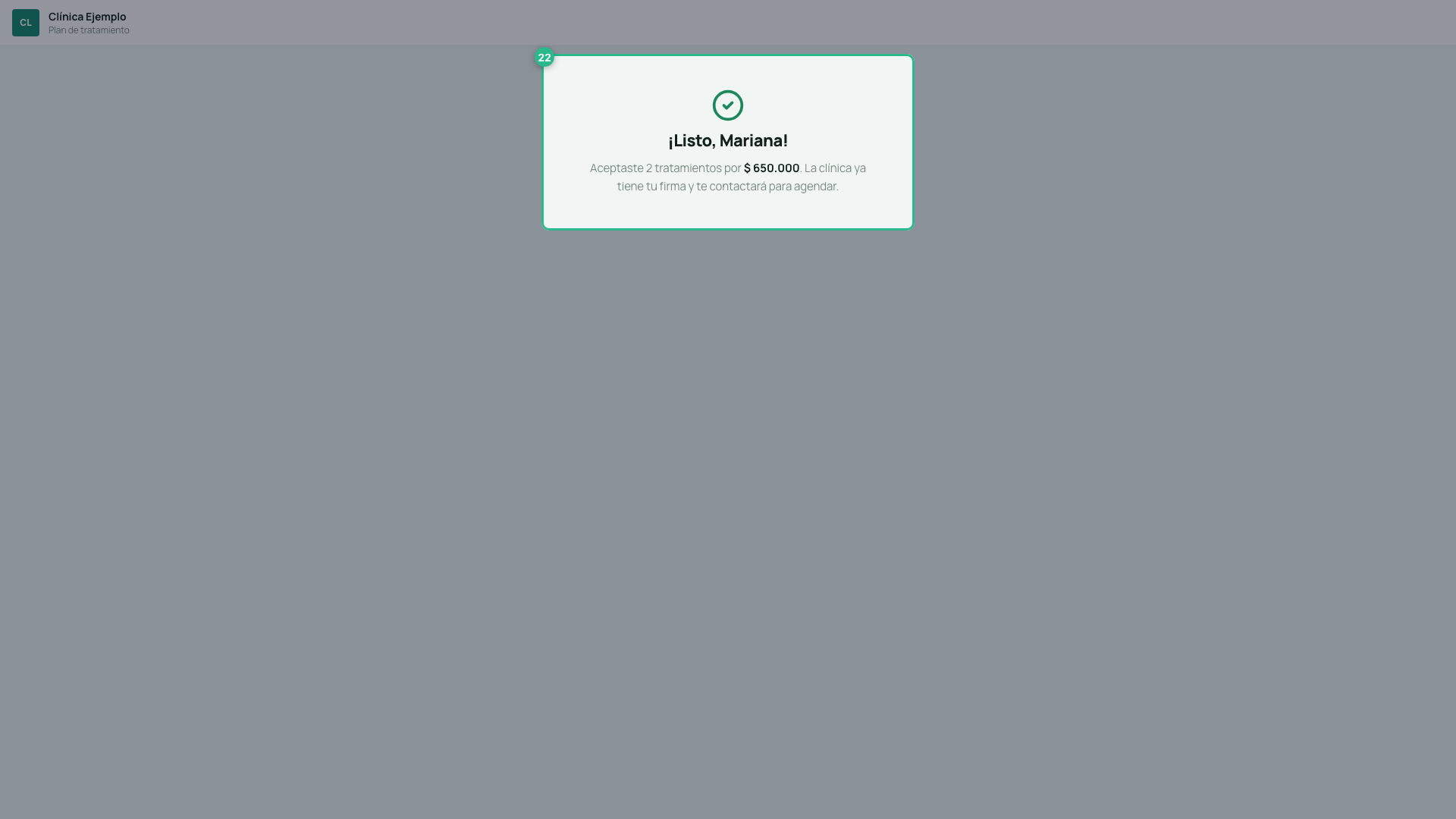
The signature accepts the quote, not the procedures: each irreversible procedure still needs its own informed consent.
Tip
Whatever the patient has not yet fully accepted waits for you in Atención → Seguimiento → Presupuestos pendientes, with the next step for each one (how).