How to search across the whole platform
On this page
Global search finds patients, appointments, invoices and sections from any screen, without going back to the matching list. It lives in the top bar and opens with a keyboard shortcut.
Before you start
Only the groups your role can query appear: Patients requires the patients permission, Appointments the appointments one and Invoices the finance one. If your user lacks one, that group is neither queried nor shown — this is not an error. Sections (Go to) are always available.
Steps
-
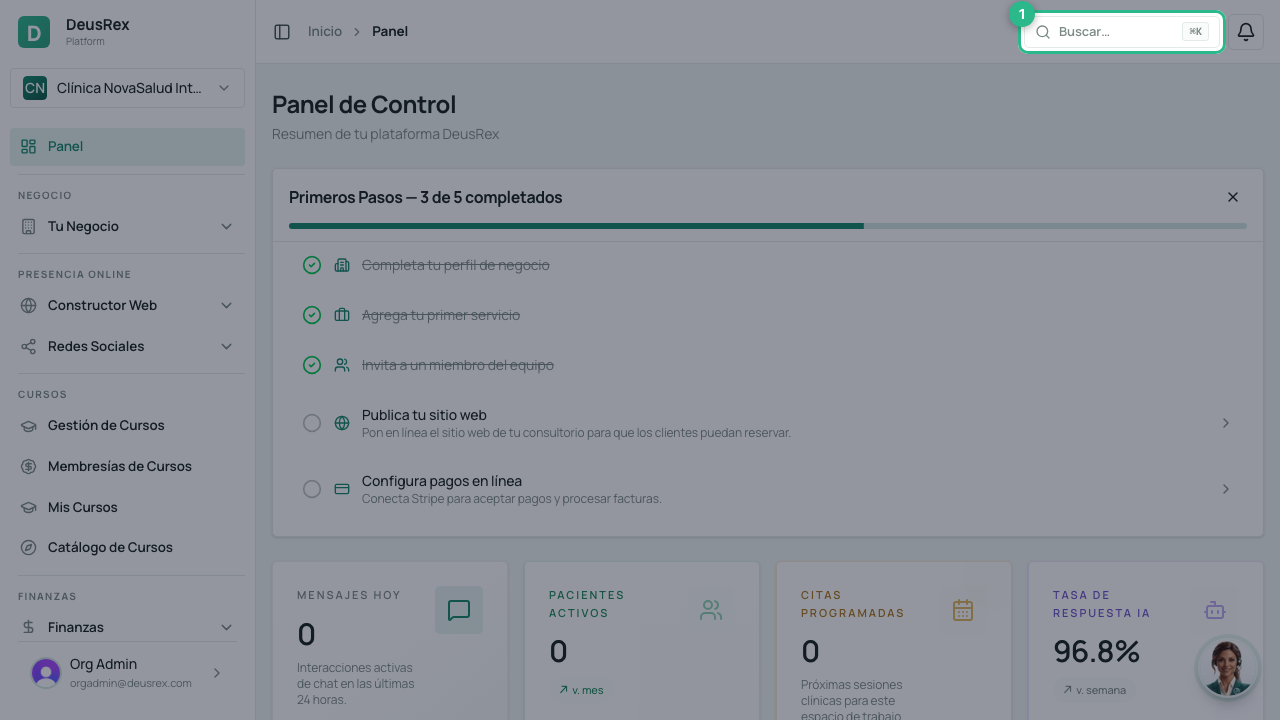
Press ⌘K (on Mac) or Ctrl+K (on Windows) from any screen. You can also click the Search… button in the top bar.
-
Type what you are looking for: a patient’s name, their identity document, their phone, or an invoice number.
-
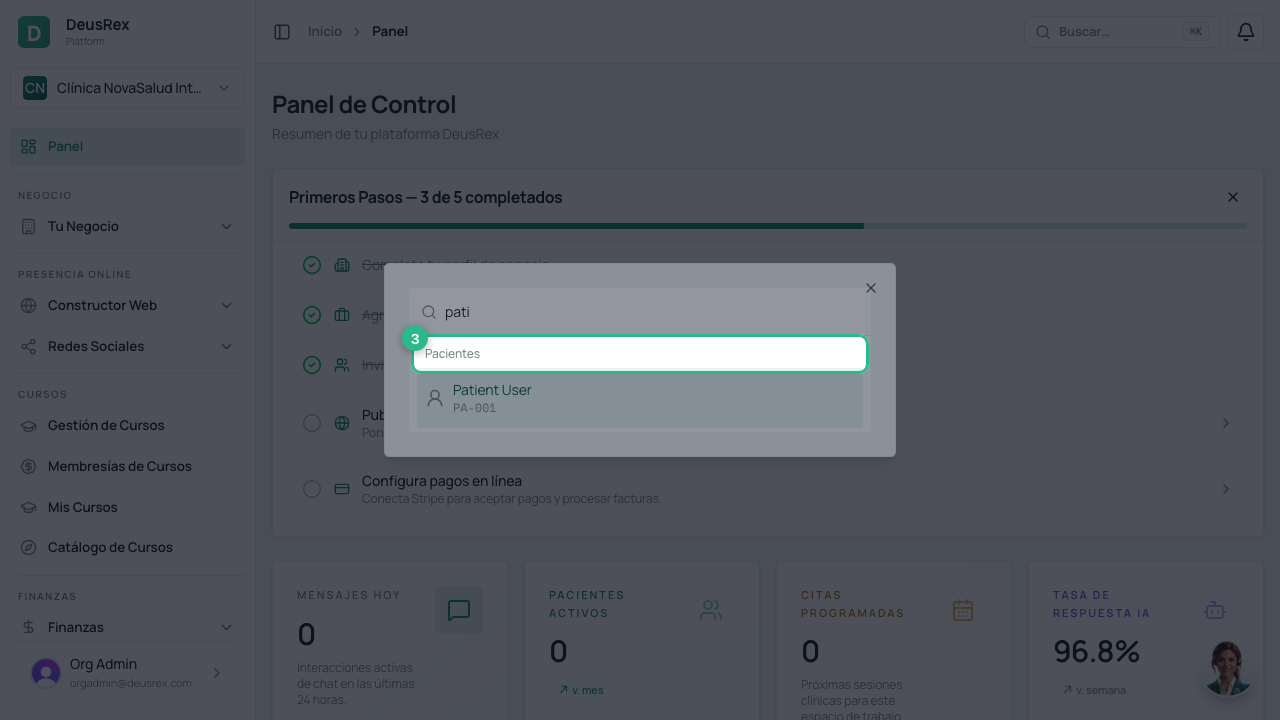
Results are grouped: Go to for platform sections, then Patients, Appointments and Invoices. Only groups with matches are shown.
-
Pick a result with the mouse, or move with ↑ ↓ and confirm with Enter. The platform takes you straight to the record.
Tips
- With a single letter no records are queried: up to two characters the search only suggests sections. Type a bit more to see patients, appointments and invoices.
- Each group shows at most 5 results. If what you want doesn’t appear, narrow the term — for example the identity document instead of the name.
- Esc closes the search without leaving the screen you were on.
- On mobile the button shrinks to the magnifying glass, on the right of the bar.