How to hand the patient a report after the appointment
On this page
Some services end with something your practice hands over to the patient: a progress report, a work plan, an assessment summary. That is a deliverable. It is not a requirement: a requirement is what the patient brings; a deliverable is what you give them.
DeusRex reminds you of each one with its deadline, sends it by email with a secure link, and records how and when it went out.
Before you start
You need a service. If you don’t have one yet, see how to create a service.
1. Set it up on the service
-
Go to Your business → Services and open the service.
-
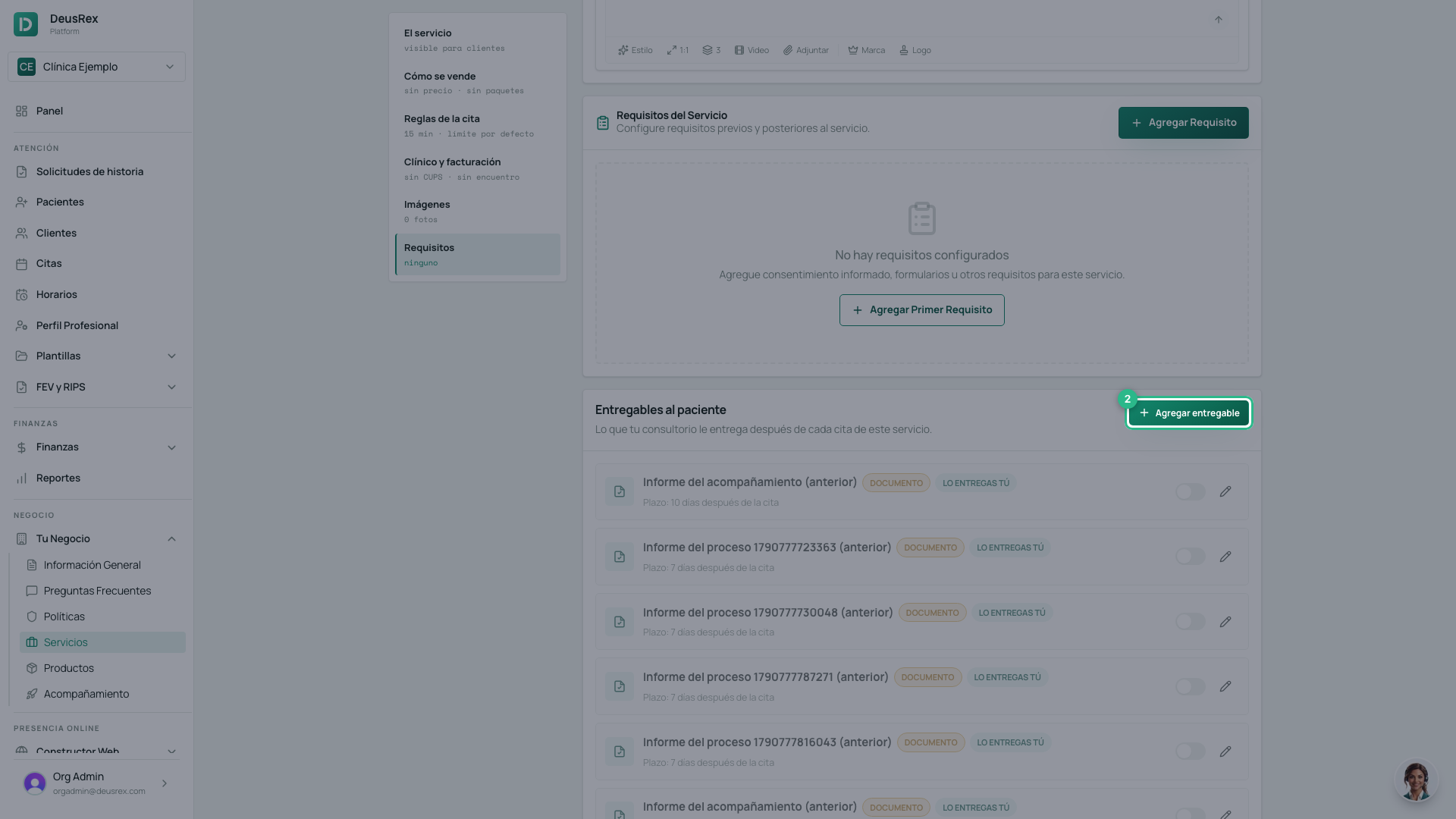
Scroll to Deliverables to the patient and click Add deliverable.
-
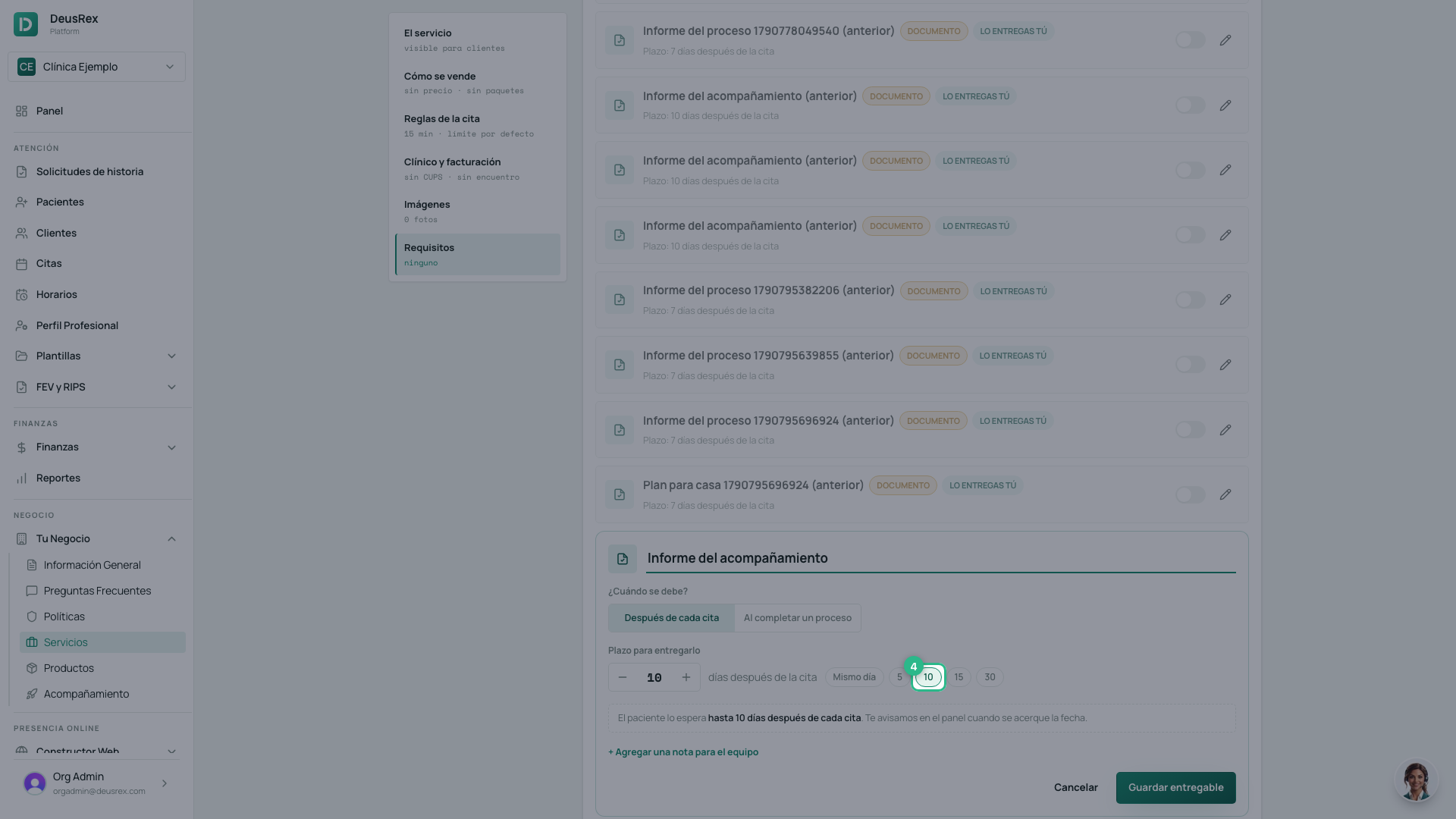
Type the name the family will read: “Progress report”.
-
Pick the deadline: how many days after each appointment it must be ready. Use − / + or a shortcut (Same day, 5, 10, 15, 30). The sentence below confirms the deadline in words.
-
Click Save deliverable.
From then on, every appointment for that service creates a deliverable for that patient, with its deadline. If the appointment is cancelled, the deliverable is cancelled; if it is rescheduled, the date moves with it.
Once per process, not every appointment
Some services are a process of several appointments with a single report at the end, like a 4-session assessment. On the deliverable, under When is it owed?, choose When a process ends and set how many appointments it has. The deadline counts from the last appointment of the process.
The patient’s 4th booked appointment of that service then owes the report, and the count starts over: appointments 1–4, then 5–8. Cancelled appointments do not count. On the file, Origin reads Process · 4 appointments · last ….
2. Hand it over from the patient’s file
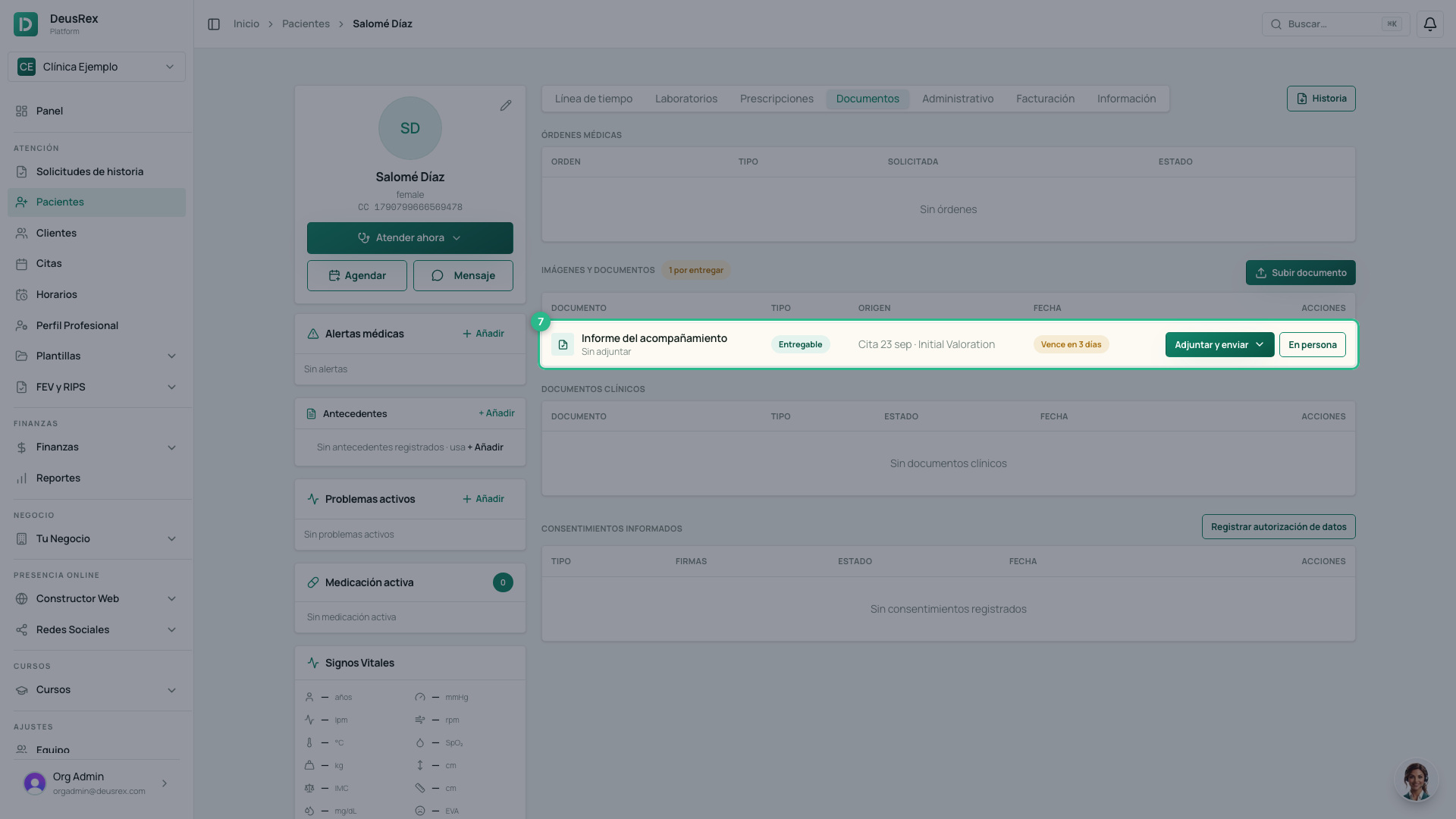
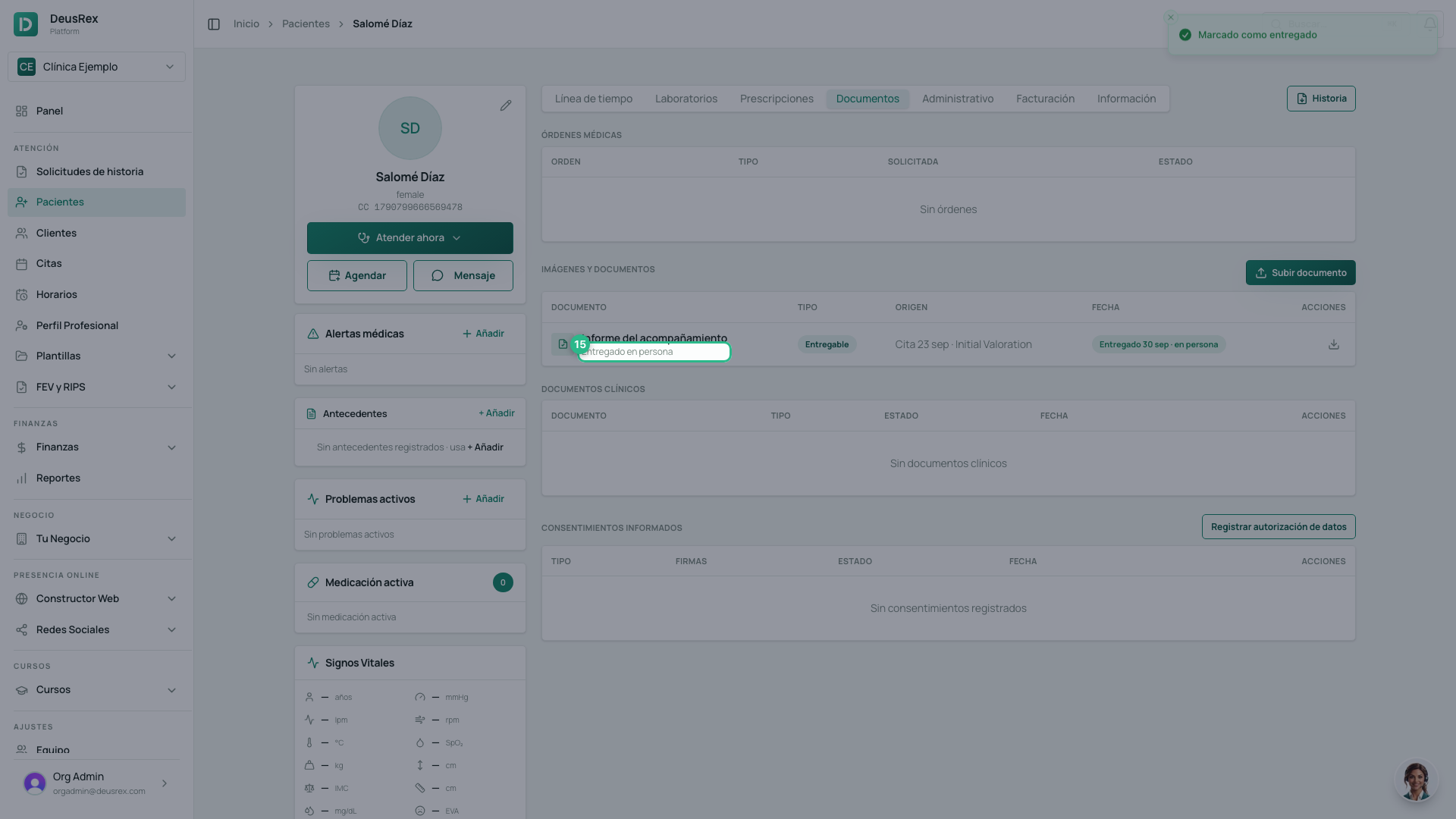
Deliverables live in the Documents tab, inside Images and documents, with the type Deliverable. Pending ones come first, and the date changes colour as the deadline gets close or passes.
-
On the deliverable’s row, click Attach and send.
-
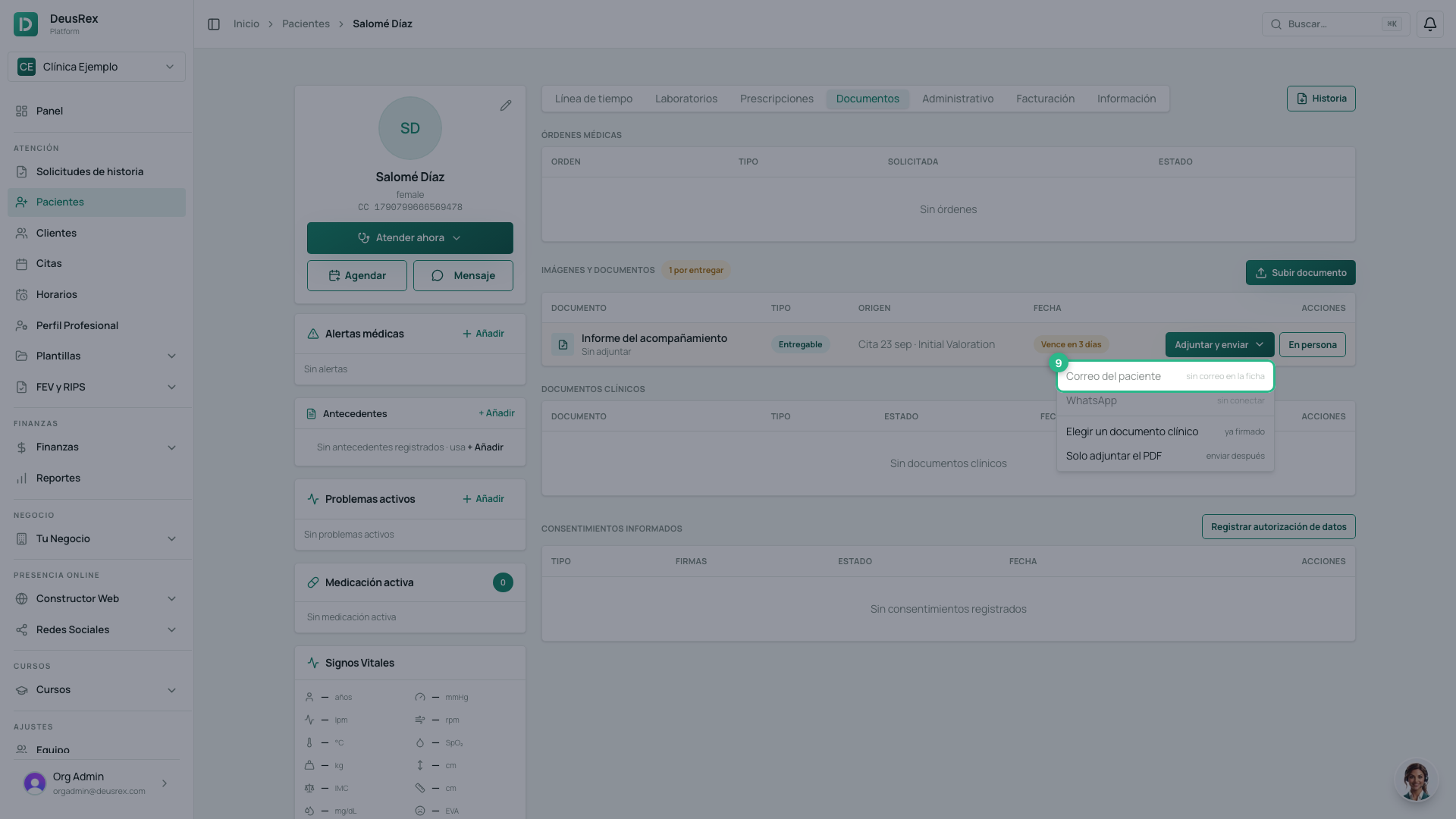
Choose who gets it: the patient’s email, for a minor their guardian’s, or WhatsApp if your practice has it connected. If something is missing from the file, the option is disabled and says why.
-
In Which document are you delivering?, pick one of their clinical documents already signed in the visit, or click Upload a PDF. Click Attach and send: DeusRex attaches it and sends it in one step. A draft can’t be picked; sign it first.
The family receives an email with your practice’s branding and a button that opens the PDF. No account needed, and the link is valid for 7 days.
If you’re not sending it yet
Choose Just attach the PDF in the same menu. It is marked ready to send and the button becomes Send.
If you handed it over in person
Click In person. It is recorded as delivered, with the date.
The dashboard reminds you
On the Dashboard, the To deliver card lists what the whole practice still owes, most urgent first.
Retiring a deliverable
On the service, switch the deliverable off. New appointments stop creating it; what is already owed stays on each patient’s file.
Tip
If you already wrote the report as a clinical document in the visit, sign it there and pick it when delivering: no need to export it and upload it again. Also check that the file has the email or phone before the appointment.