How to bill a visit to the EPS (authorization, rates and moderator fee)
On this page
The visit’s Facturación block says who pays for it: the patient (Particular), their EPS under a contract, or an IPS externa you work with. It sits on the Prestaciones sub-tab, next to the list of services.
Before you start
- The patient must have their EPS chosen on their record (insurance section).
- Your organization must have an active contract with that EPS, with its rates. See How to register an EPS contract and its rates.
- To collect a cuota moderadora (moderator fee) or a copago (copayment), DIAN electronic invoicing must be enabled, with the provider’s REPS code.
- Patient collection is recorded by whoever manages finances (the admin or the assistant): saving it issues a receipt to the DIAN. The professional sees the collection but cannot change it — the screen says so — and does everything else: contract, authorization and services.
Steps
-
On the patient’s profile click Atender ahora and choose Consulta.
-
Type the motivo de consulta. The visit saves itself as a draft.
-
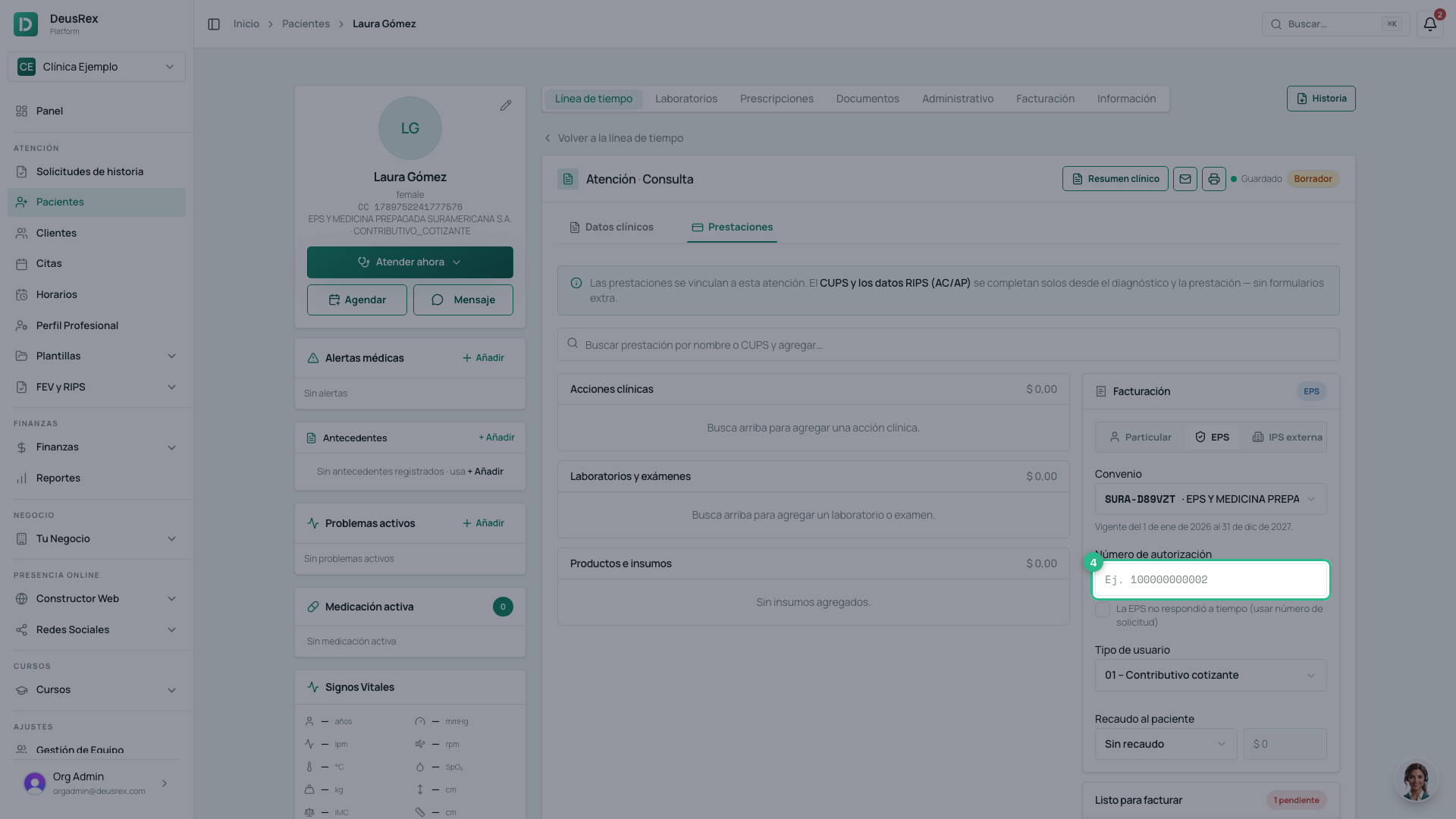
Go to the Prestaciones sub-tab. Facturación already shows EPS with the contract chosen: when the patient’s EPS has a contract active on the visit date, that is the default.
-
Enter the Número de autorización and click Guardar. The field only appears when the contract requires an authorization.
-
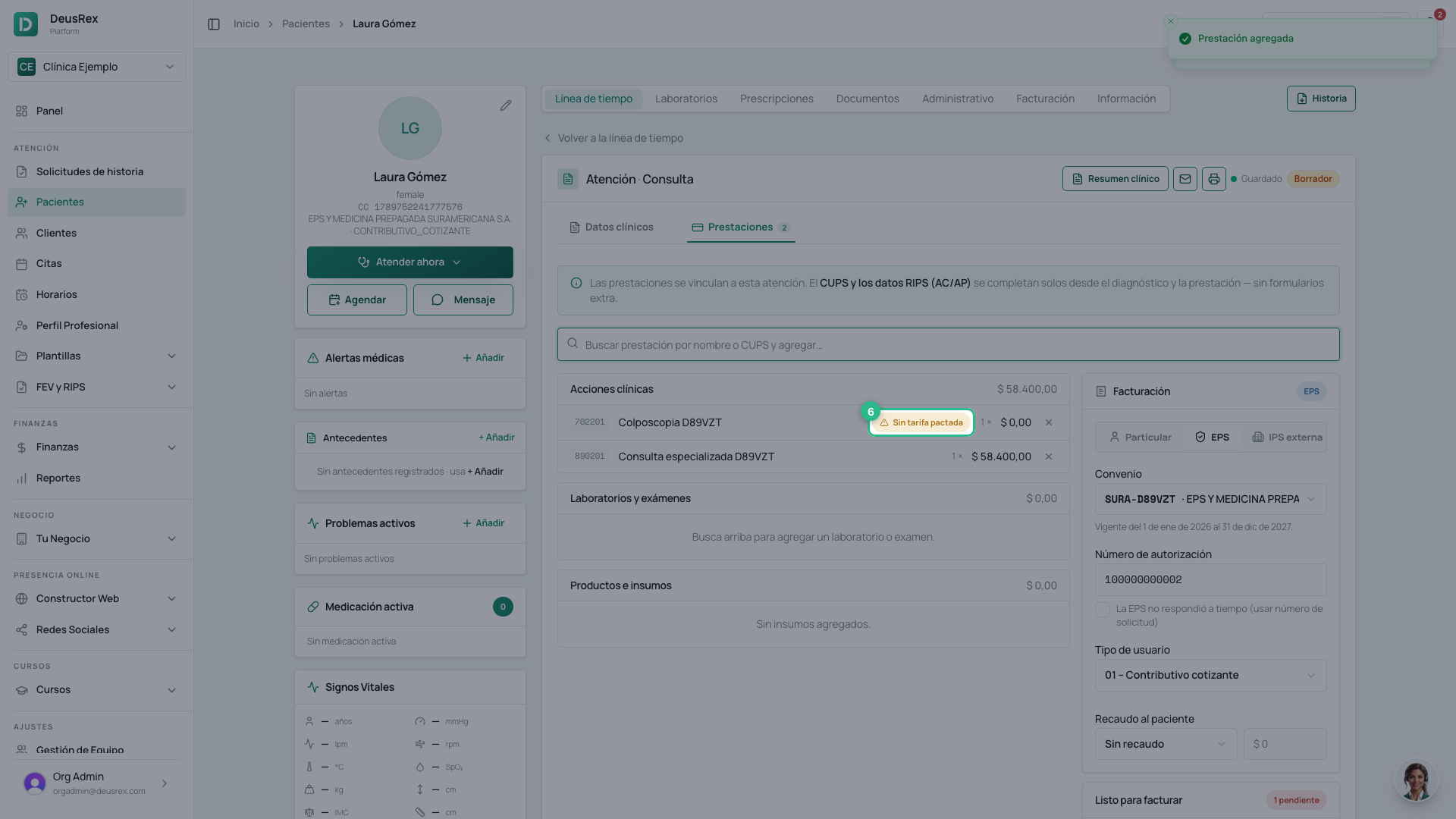
Add the services with the search box. On an EPS visit each one takes the contract’s agreed rate, not your catalogue price.
-
A service whose CUPS code has no rate in the contract is marked Sin tarifa pactada and priced at $0.
-
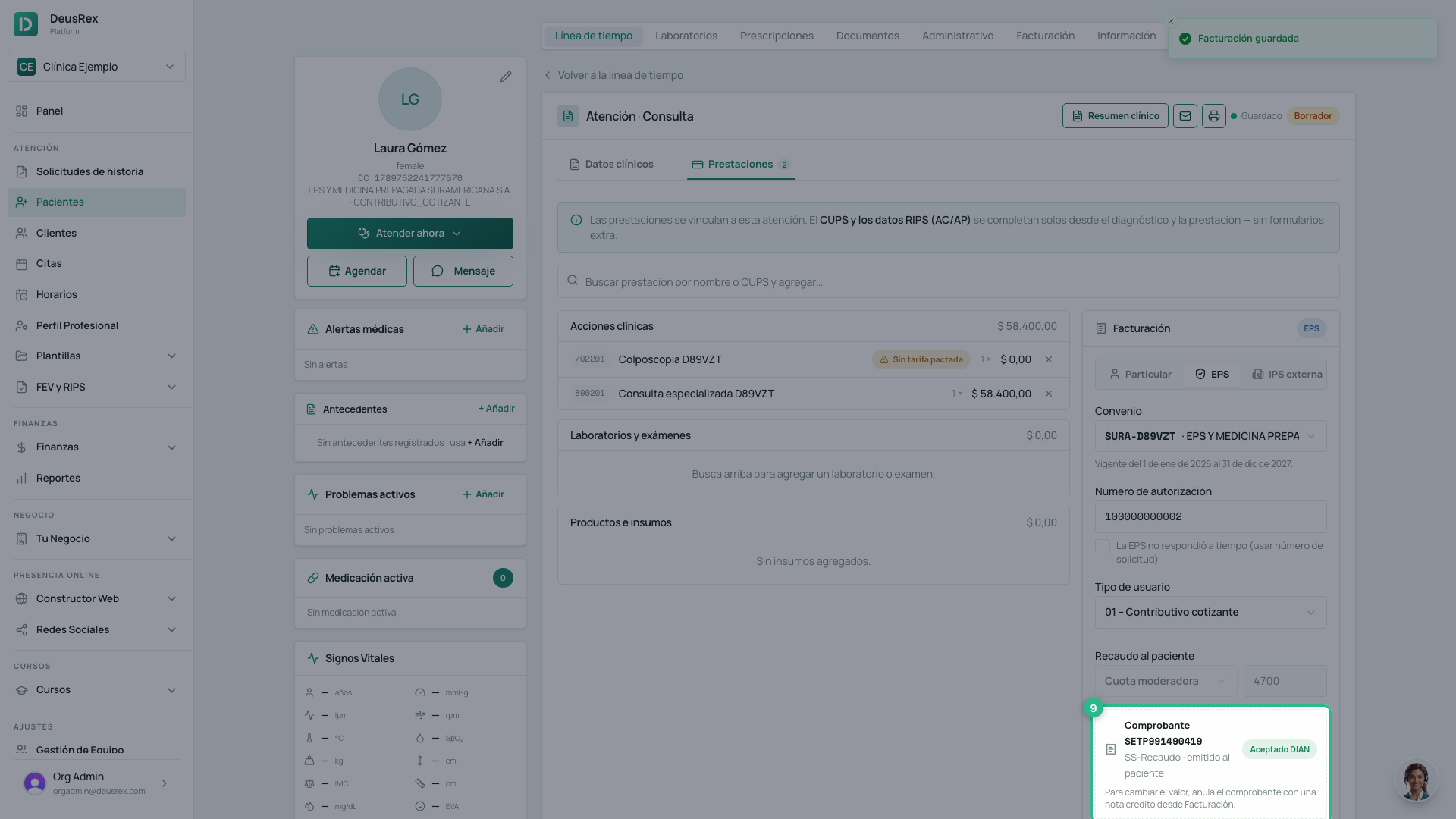
Under Recaudo al paciente — only for whoever manages finances — choose Cuota moderadora or Copago and enter the amount in pesos, without separators (e.g.
4700). -
Click Guardar y emitir comprobante.
-
The receipt appears with its number and its DIAN status. It is an electronic invoice to the patient with operation type SS-Recaudo, and its number is the one the RIPS reports for the collection.
-
Check Listo para facturar (ready to invoice). Each pending item says how to fix it.
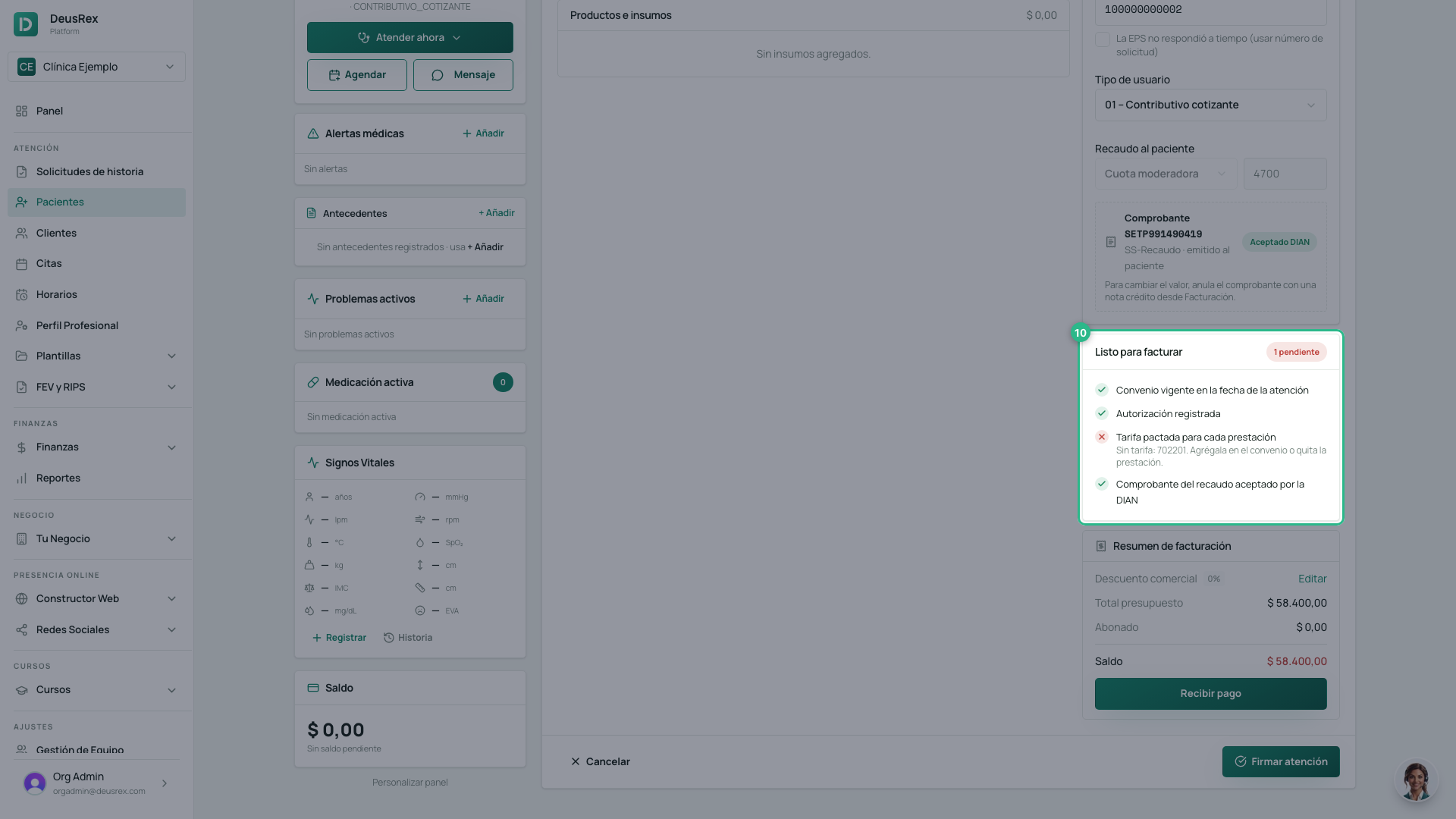
Ready to invoice
The visit can only be invoiced to the EPS when all of these hold:
| Item | If it fails |
|---|---|
| Contract active on the visit date | Renew it under Convenios con EPS or choose another contract |
| Authorization recorded (when the contract requires it) | Enter the number, or tick La EPS no respondió a tiempo and enter the request number |
| Agreed rate for every service | Add the code’s rate to the contract, or remove the service |
| Collection receipt accepted by DIAN | Save the collection, or check under Facturación why it was rejected |
If the EPS did not answer the authorization
Tick La EPS no respondió a tiempo (usar número de solicitud). The field becomes Número de solicitud: enter the number of the request you filed with the EPS.
If the EPS has several contracts
When the patient’s EPS has more than one active contract, the block stays on EPS with no contract and asks you to choose one. Until you do, the authorization field does not appear and the visit cannot be invoiced.
Patient type
Tipo de usuario is filled from the patient’s affiliation (contributory contributor, beneficiary, subsidised…) and is what the RIPS reports. A moderator fee is only charged to contributory affiliates; for a subsidised patient, record a copayment.
Changing the amount after issuing
Once the receipt is issued, its concept and amount are fixed. To change them, void the receipt with a credit note from Facturación and record the collection again.
Private and external IPS
- Particular: the patient pays. Signing creates the draft invoice with the services, as always.
- IPS externa: choose the IPS you work with. The IPS bills the EPS; the visit is reported in the RIPS under the IPS’s REPS code and no invoice is created here.
Once it is invoiced
When the visit is already on an invoice, the block locks and shows Facturada: its data can no longer change.
Next step
Once the visit is ready to invoice, it appears under FEV y RIPS → Cuentas EPS → Por facturar, where you issue the invoice to the EPS. See How to issue the electronic invoice to the EPS.